

Tutorial: Upload your own art
Already have artwork, or want to drop your own monster art straight into a game? Upload it, tell Bali what it’s for, and Bali adds it to the game. No coding required.
Cave arcade game, part 6 of 6. Each part builds on the one before. See all tutorials.
You’ll learn how to: upload an image, give Bali the context it needs, and check that the new asset works in the game.
Prefer to watch? Play the full video (4 min)
Step 1: Upload your image
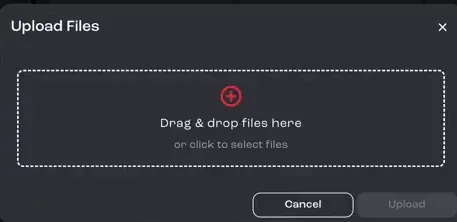
Section titled “Step 1: Upload your image”Open the Assets tab and click the upload button at the top right. Drag your file into the Upload Files dialog, or click to select it, then click Upload.
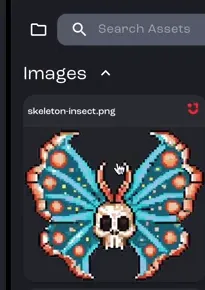
The image appears in the Assets tab. The video uploads an illustration of a skeleton insect.
Step 2: Describe the image to Bali
Section titled “Step 2: Describe the image to Bali”Give Bali a short description of the image, such as what it shows and its colors. Bali uses it to write the context and details the game needs to use the image.
Step 3: Tell Bali what it’s for
Section titled “Step 3: Tell Bali what it’s for”Bali asks what you’d like to do with the new image and suggests options: a new enemy or obstacle, a special collectible, a boss or special hazard, or a replacement for an existing obstacle.
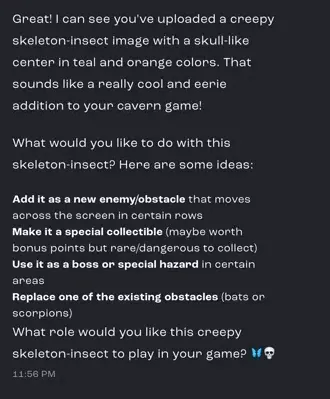
Answer in plain words, and name the row or obstacle to replace. In the video, two rows used the same green bugs, so it replaces the ones on row two. If you followed part 2, row one already has your new enemy, so pick a row that still uses an original obstacle:
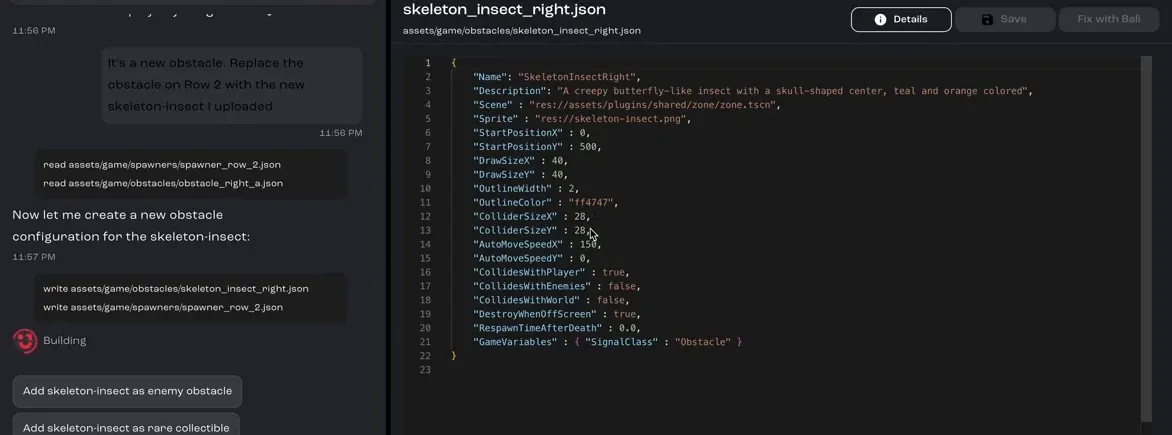
It's a new obstacle. Replace the obstacle on Row 2 with the new skeleton-insect I uploaded.Step 4: Let Bali add it to the game
Section titled “Step 4: Let Bali add it to the game”Bali creates everything the game needs to treat the image as a real obstacle, not just a file. In this game, that’s a new obstacle entry with a name, a description, the sprite, its size, its collision box and its speed, and an update to row two to use it.
Step 5: Check that it works
Section titled “Step 5: Check that it works”Play the game and check that the new art shows up where you asked and behaves correctly. If something’s off, describe what you see and let Bali fix it. The video takes a little back and forth to confirm the skeleton insect is referenced, positioned and moving as intended.