

Tutorial: Make your first game
Go from an idea to a playable game in a few minutes. You’ll describe a lane-based arcade game, where a spelunker dodges monsters and bats underground, and let Bali generate the title, art and poster for you.
Cave arcade game, part 1 of 6. Each part builds on the one before. See all tutorials.
You’ll learn how to: describe a game idea, answer Bali’s setup questions, let Bali finish the setup, and playtest the result.
Prefer to watch? Play the full video (2 min)
Step 1: Start with an idea
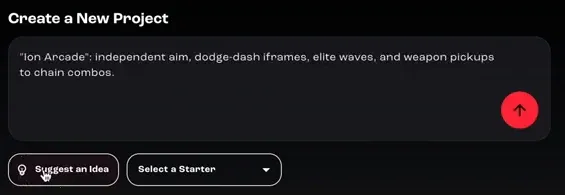
Section titled “Step 1: Start with an idea”On the home screen, type your idea into the prompt box. If you don’t have one yet, click Suggest an Idea and Bali proposes a concept. Click it again for a different one.
Step 2: Describe your game
Section titled “Step 2: Describe your game”In one or two sentences, say what kind of game it is, where it’s set, who the main character is and what the player does. The video uses this prompt:
I want to create a game about dodging bats and other underground monsters in a cave, with the main character being a spelunker
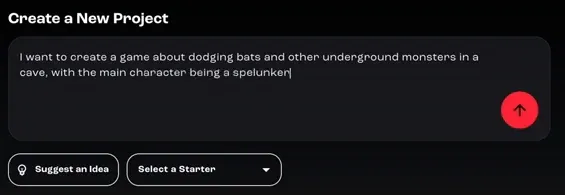
Click the arrow button to send it.
Step 3: Answer Bali’s questions and pick a template
Section titled “Step 3: Answer Bali’s questions and pick a template”Bali asks a few questions to understand what you want, such as whether the game is 2D or 3D and how much code you want to write yourself. The video picks 2D, because the player moves in tight lanes, and a no-code approach, so Bali handles the art, audio and code.
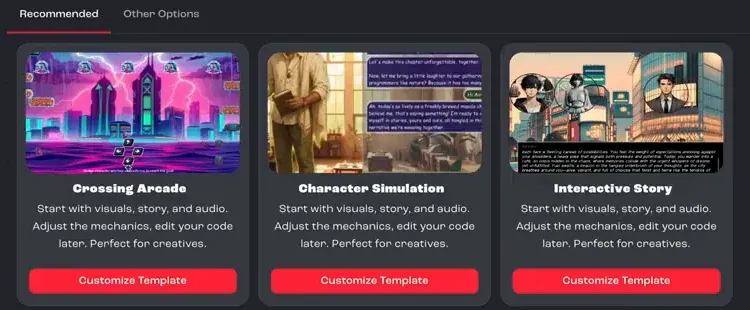
Bali then recommends templates that fit your idea. Pick one and click Customize Template. The video uses Crossing Arcade, which suits a lane-crossing game like this one.
Step 4: Let Bali finish the setup
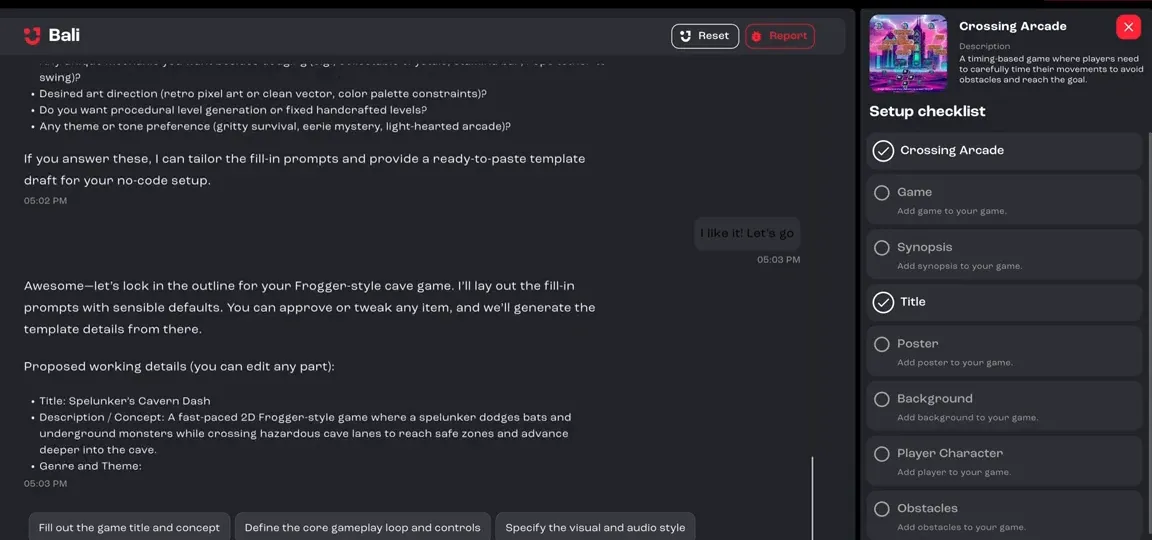
Section titled “Step 4: Let Bali finish the setup”Bali proposes working details for your game, including a title, a short description, the genre and the theme, and starts filling in the Setup checklist on the right: the game, synopsis, title, poster, background, player character, obstacles and more.
You can approve or change any item. To see what Bali makes on its own, click Finish with AI. Bali generates everything that’s left. This can take a few minutes, and it carries on in the background if you go back to the home screen.
Step 5: Check what Bali created
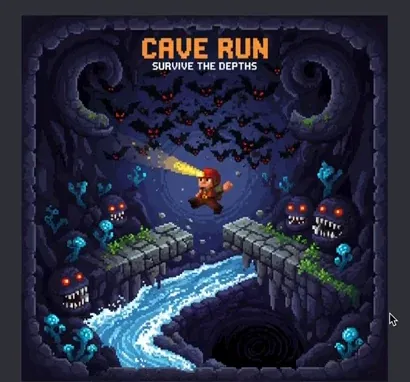
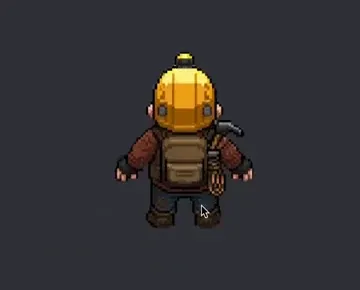
Section titled “Step 5: Check what Bali created”As each item is generated, click it in the checklist to see the result and the prompt Bali used. In the video, Bali created a cave background, a poster with the bats, cave and monsters from the prompt, and a spelunker character with a helmet lamp.
Step 6: Playtest your game
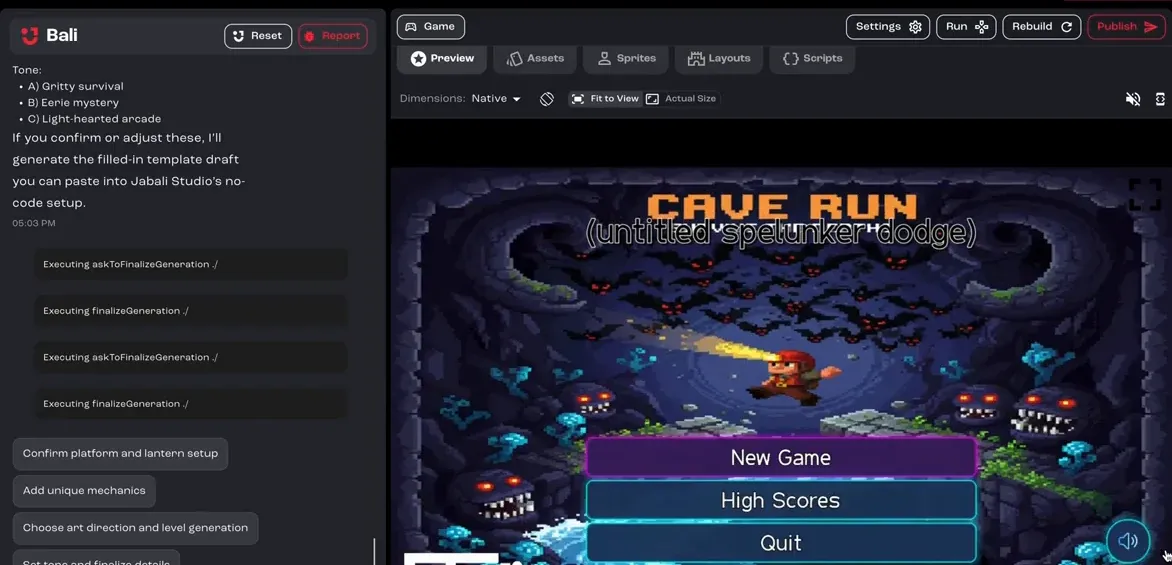
Section titled “Step 6: Playtest your game”When everything is generated, the game opens on the Preview tab. Click New Game and play it straight away.
Step 7: Keep improving it with Bali
Section titled “Step 7: Keep improving it with Bali”From here, ask Bali in the chat on the left for whatever you want to change: new visuals, a different difficulty, or a fresh version of any asset. The next tutorial shows how.