

Version history and rollbacks in Jabali Studio
As you build your game in Jabali Studio, you make lots of changes: generating assets, editing scripts, updating layouts, playtesting mechanics and publishing new versions. Version history keeps track of those changes so you can experiment safely, save major milestones and roll back if something goes wrong.
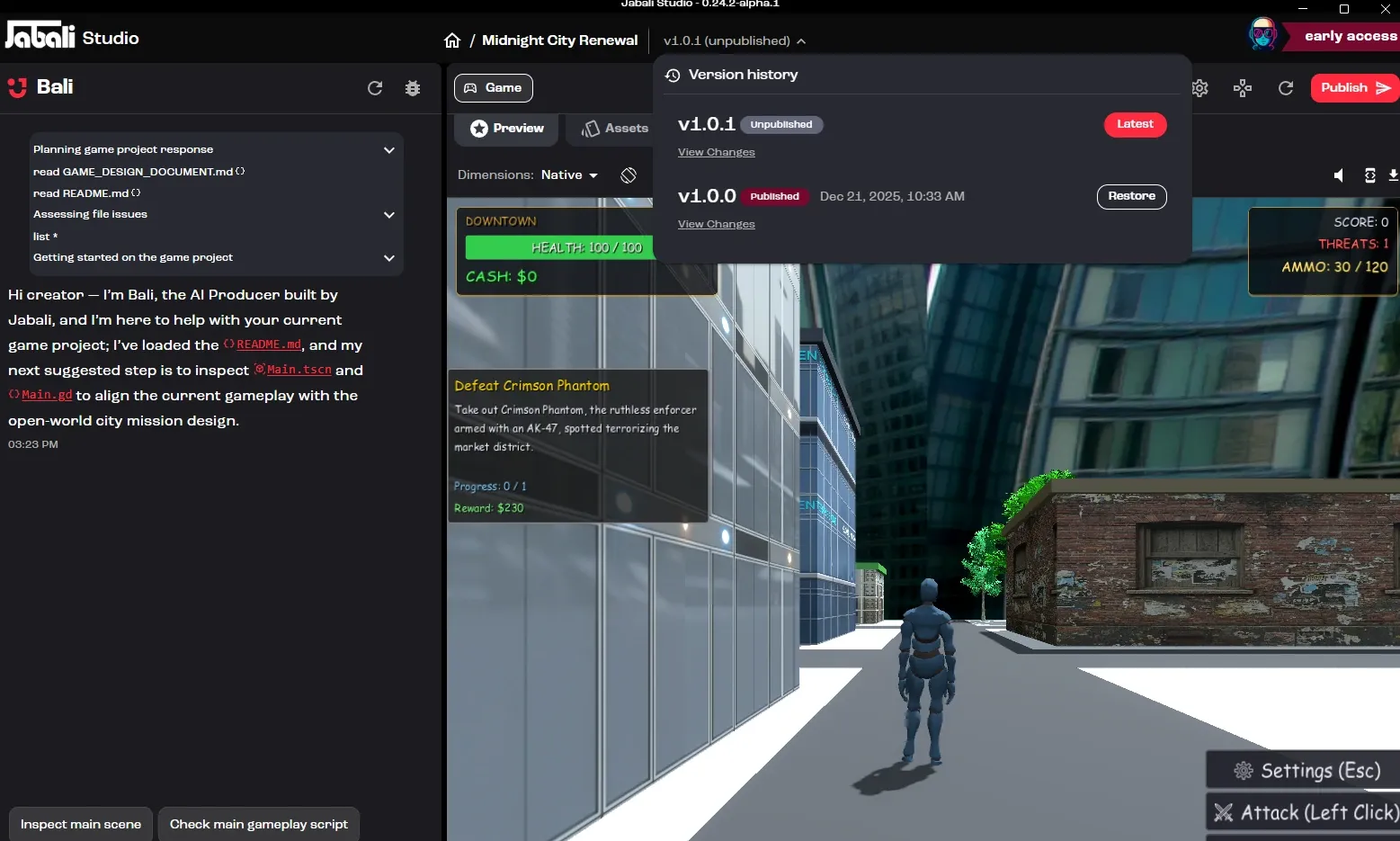
What is version history?
Section titled “What is version history?”Version history is the list of saved versions of your current game project. Each version is a snapshot of your game at a point in time and can include changes to:
- Game code
- Assets
- Layouts
- Scripts
- Project configuration
- Published game state
The version history panel shows which version is the latest, which version is published, and which older versions you can restore.
How versions are organized
Section titled “How versions are organized”Studio records changes automatically as you and Bali work: generated assets, uploads, script edits and so on. In the Version History panel, changes are grouped by version:
- The top group is the version you’re working on now, named after the next version number. It collects every change since you last published.
- Each time you publish, the changes become a numbered version, such as Version 1.0.1.
To open the panel, click View version history (the clock icon) in the toolbar, or click the version label next to your game’s title.
When should you save a version?
Section titled “When should you save a version?”Save often, especially after a major change. A good rule of thumb: save a new version whenever you would be frustrated to lose the current state of your game.
Save after changes like:
- Completing a first playable version
- Adding or changing major mechanics
- Generating a new batch of assets
- Editing important scripts
- Reworking level layouts
- Updating the main character or core gameplay loop
- Fixing a major bug
- Publishing a version you want to keep
These saves give you safe checkpoints as your game evolves.
Recommended versioning workflow
Section titled “Recommended versioning workflow”- Make a change, such as asking Bali to generate assets, editing scripts, updating layouts, or changing gameplay or story content.
- Preview and test. Use the Preview tab to check the change, and Run in new window to playtest.
- Save a version once the change works as expected.
- Publish when ready. Click Publish to update the hosted version of your game. Publishing also creates a new numbered version in the history.
- Repeat and keep iterating with confidence.
Watch: Restore an earlier version instead of debugging (1:21, from the live session Build Your Own Voxel Game Using AI)
Viewing changes
Section titled “Viewing changes”Click a version or an individual change to expand it and see what changed, file by file. Changed images are shown as pictures, not just file names. This helps you understand:
- What Bali changed
- Which files were modified
- Whether scripts or layouts were updated
- What changed between the published version and your latest work
Restoring an earlier version
Section titled “Restoring an earlier version”To roll back, open the version history panel and click Restore next to the version you want to return to. Studio reloads the project at that version.
Watch: Restore the whole project or a single file (1:50, from the masterclass How to Build a Game on the Jabali Studio)