

Open and manage projects in Jabali Studio
After you sign in, Jabali Studio lists the games in your account that you can open and edit, including games you started on Jabali Web or FriendJam. The home screen shows your Recent Projects. To see them all, click Your Projects in the sidebar or View all.
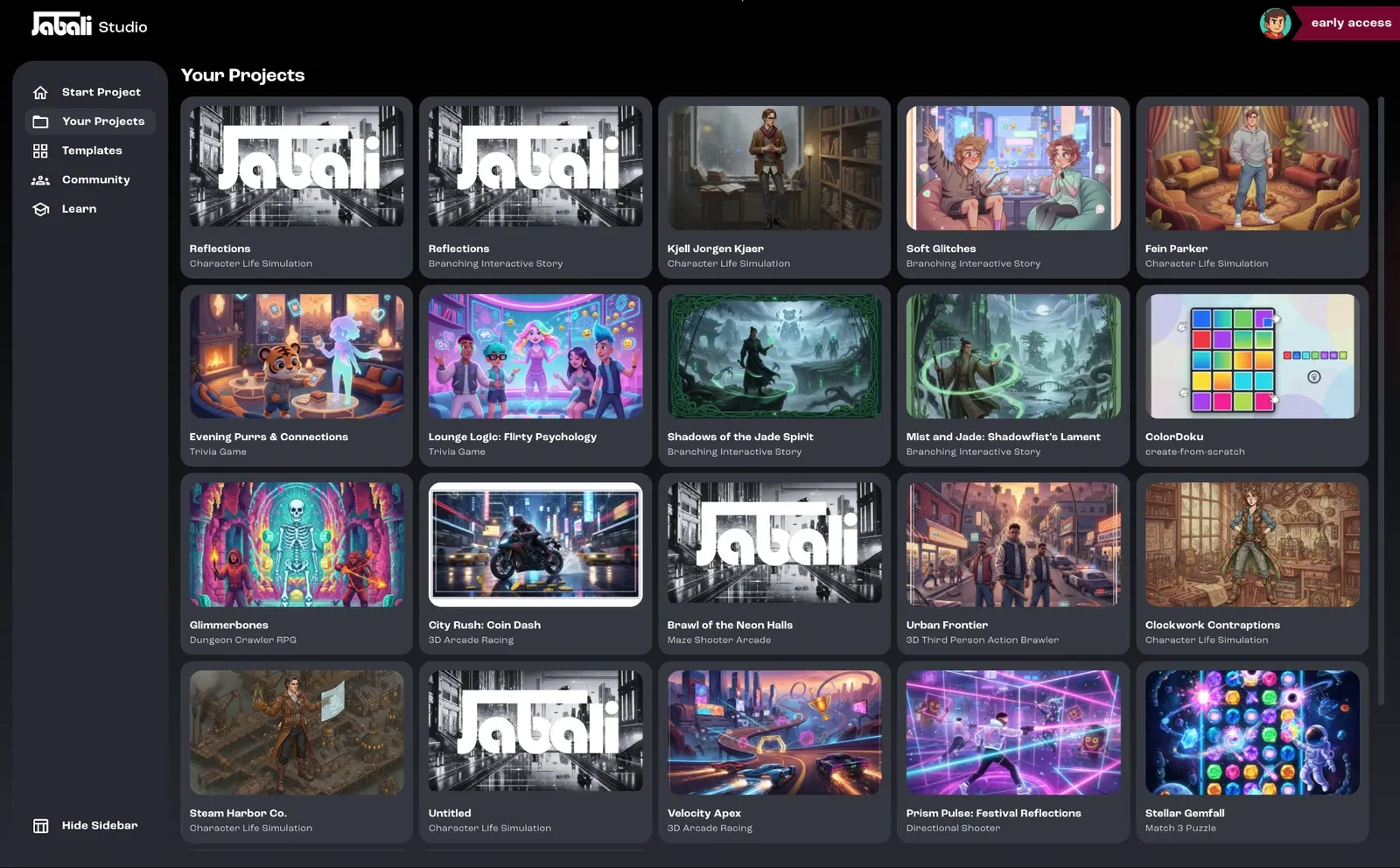
Open a game
Section titled “Open a game”- From the start screen, click any game in your library.
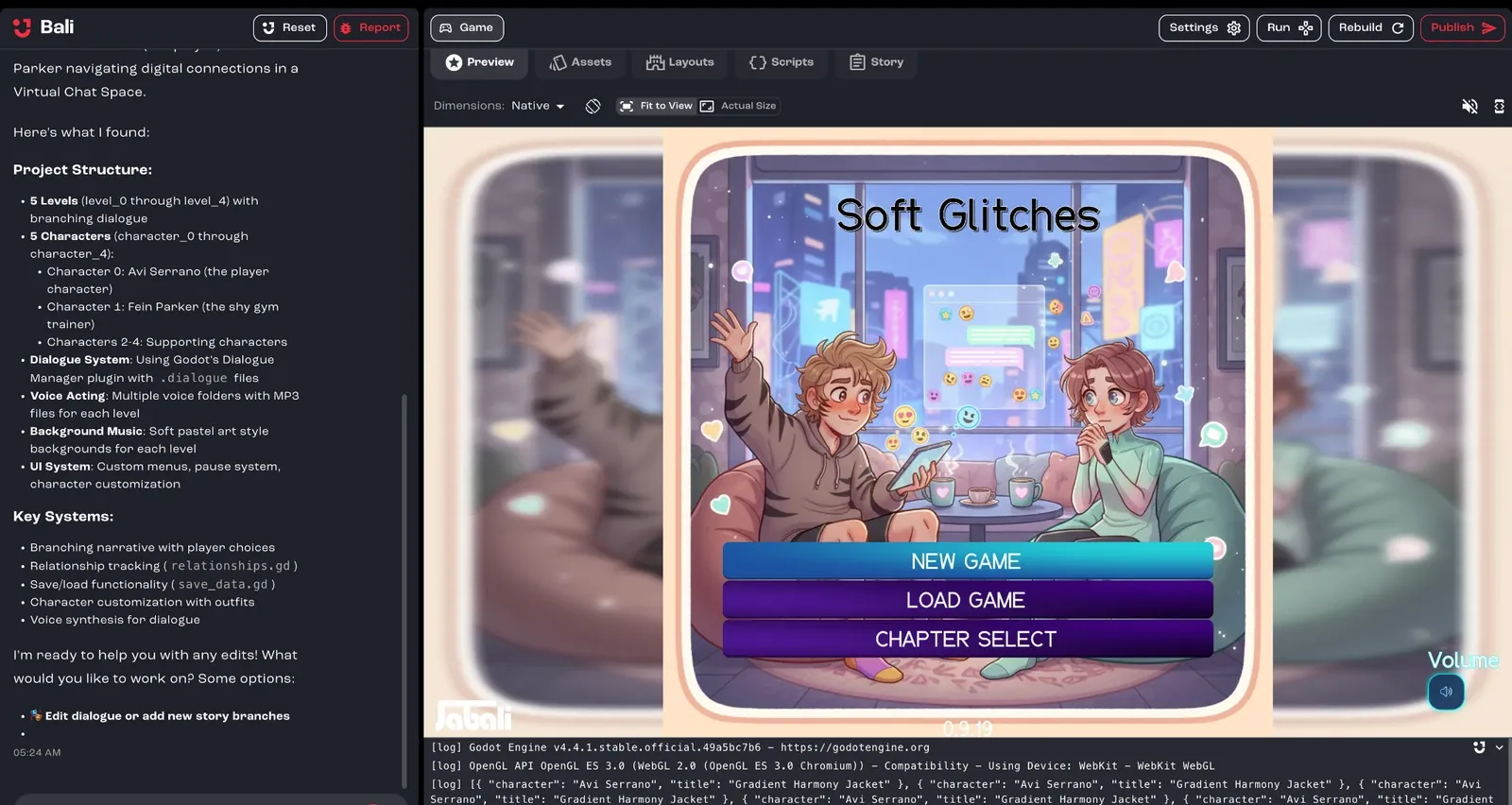
- Your game opens in Studio. The first time you open a game on a computer, Studio downloads its files, which can take a moment.
Icons on a project card tell you more:
| Icon | Meaning |
|---|---|
| Cloud with an arrow | The game isn’t downloaded to this computer yet. |
| Archive box | The game is archived and read-only. See Archive a project. |
Open a FriendJam game
Section titled “Open a FriendJam game”You can bring games you made on FriendJam into Jabali Studio and keep building them with Bali, including assets, code and publishing.
- Click the FriendJam game in your library.
- Studio asks: “This is a FriendJam game. Do you want to open it in Jabali Studio?”
- Click Proceed with Jabali Studio to import it, or Keep in FriendJam to leave it where it is.
To check how the game looks on FriendJam, choose FriendJam Mobile in the preview’s Dimensions menu.
Archive a project
Section titled “Archive a project”Archiving keeps your library focused on what you’re working on now. An archived game is read-only, but nothing is deleted, and you can unarchive it at any time. Inactive projects may also be archived automatically.
- To archive: click the ⋮ menu on the project card and choose Archive project, or switch the project to Archived in Project Settings → Game Settings. Studio asks you to confirm. A project needs to be in sync with your account before you can archive it.
- To unarchive: click ⋮ and choose Unarchive project.
When you open an archived game, Studio asks what you’d like to do:
- Open read-only to look around without making changes. A Read-Only badge reminds you.
- Unarchive and edit to make it editable again.
- Return home to go back.
Free up disk space
Section titled “Free up disk space”Games you’ve opened are stored on your computer. To reclaim space, remove the local copy of a game you’re not working on. The game stays in your account, and Studio downloads it again the next time you open it.
- Click the ⋮ menu on the project card and choose Delete local content. This option is only available for games that are downloaded to this computer.
- Review the Delete local project contents dialog. It shows whether the game is in sync with your account and whether you have local changes or history that hasn’t been uploaded yet.
- Choose an option:
- Delete local contents if everything is in sync.
- If you have changes that aren’t saved or uploaded yet, choose the option that saves and uploads them before deleting, such as Commit and push, then delete, so you don’t lose any work.
- Cancel to keep the files.
Next step
Section titled “Next step”Learn your way around the Studio interface.