

Tutorial: Fix and tune a Godot game
Fix a bug, regenerate a sprite and rebalance a tower defense game, working alongside Bali and editing code by hand where it’s quicker.
Project tutorial on the Advanced path. It stands on its own, so you can start here.
Before you start: this tutorial begins with a tower defense game that was already made with Bali. To follow along with your own, create a Godot project and ask Bali for a tower defense game where you drag towers from a panel onto build spots. Your game won’t match the screenshots exactly, but the same tabs and steps apply.
You’ll learn how to: find your way around the Assets, Layouts and Scripts tabs, fix a script yourself, rebuild to test, and change a game value directly.
Part 1: Fix dragging and regenerate an asset
Section titled “Part 1: Fix dragging and regenerate an asset”Prefer to watch? Play the part 1 video (8 min)
Step 1: Playtest and spot the bug
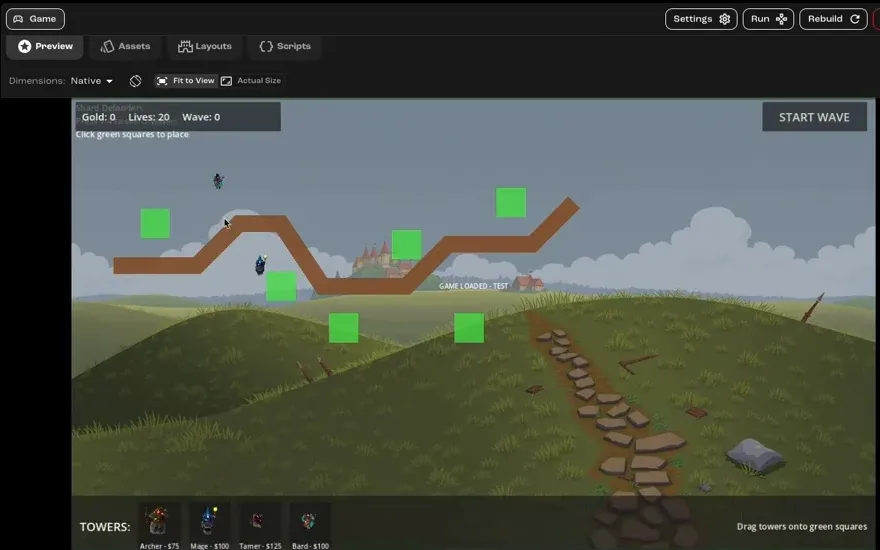
Section titled “Step 1: Playtest and spot the bug”Play the game in the Preview tab. In this tower defense game, you drag towers from the Towers panel onto the green squares. The bug: you can only drag a tower by its label, not by the whole panel.
Start a wave to see how the towers behave. Each type trades range against damage: some reach further but hit softer, others hit harder up close.
Step 2: Look through the Assets tab
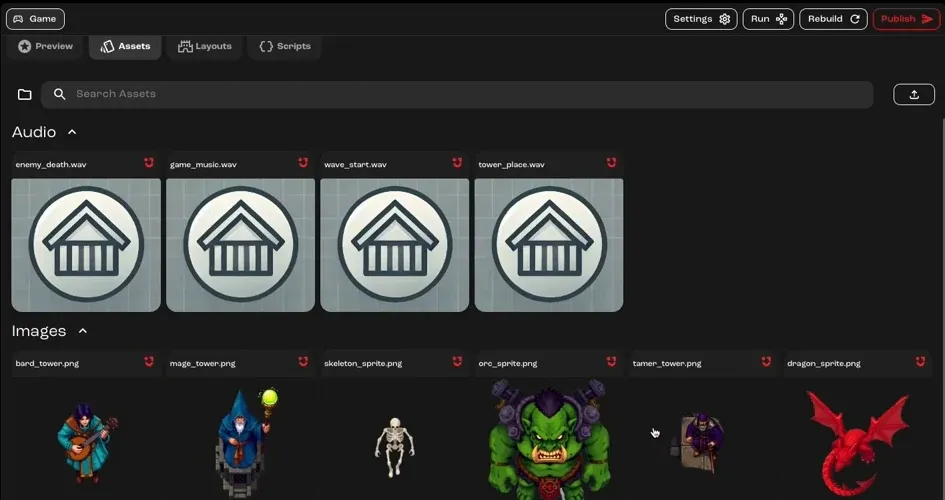
Section titled “Step 2: Look through the Assets tab”The Assets tab holds every asset generated for the game, such as sounds, tower sprites and enemies. Here, the Tamer tower’s sprite is too small to see, so it needs regenerating. You’ll do that in step 7.
Step 3: Check the scenes in the Layouts tab
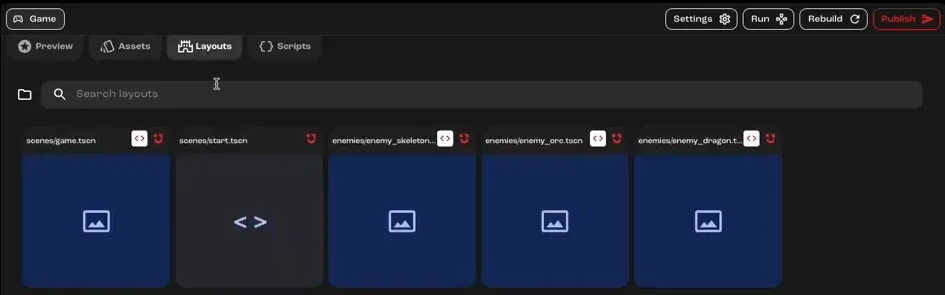
Section titled “Step 3: Check the scenes in the Layouts tab”The Layouts tab lists the game’s scenes. Look through them to get a general idea of what each one does. If you’re not sure, ask Bali to summarize a scene. It can also point out problems and suggest changes.
Step 4: Find the script in the Scripts tab
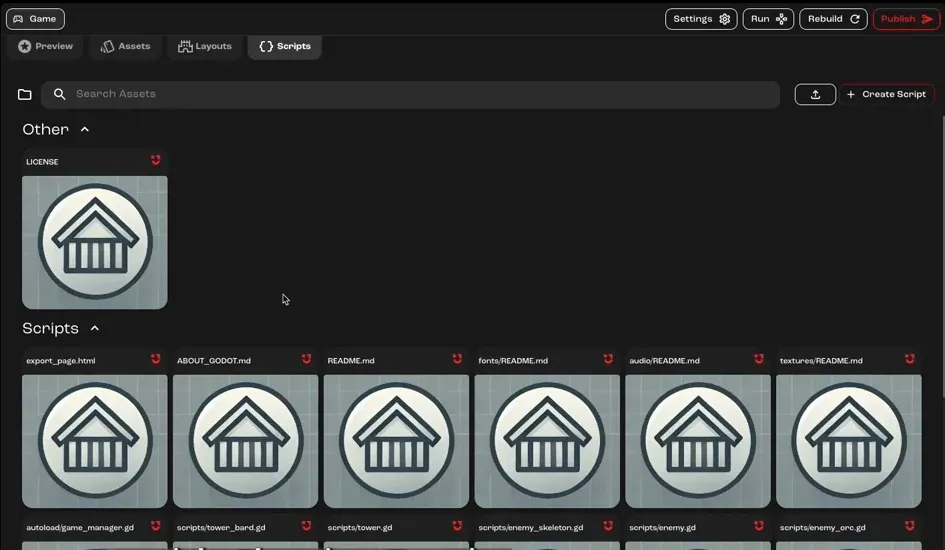
Section titled “Step 4: Find the script in the Scripts tab”Open the Scripts tab and search for the script you need. Bali names files clearly, so searching for ui finds the interface script that handles dragging.
Step 5: Fix it
Section titled “Step 5: Fix it”The tower button is a panel with child nodes inside it, such as the preview container and the sprite. The children were catching the mouse before the panel could. The fix is to set each child’s mouse_filter to Control.MOUSE_FILTER_IGNORE, so clicks pass through to the panel.
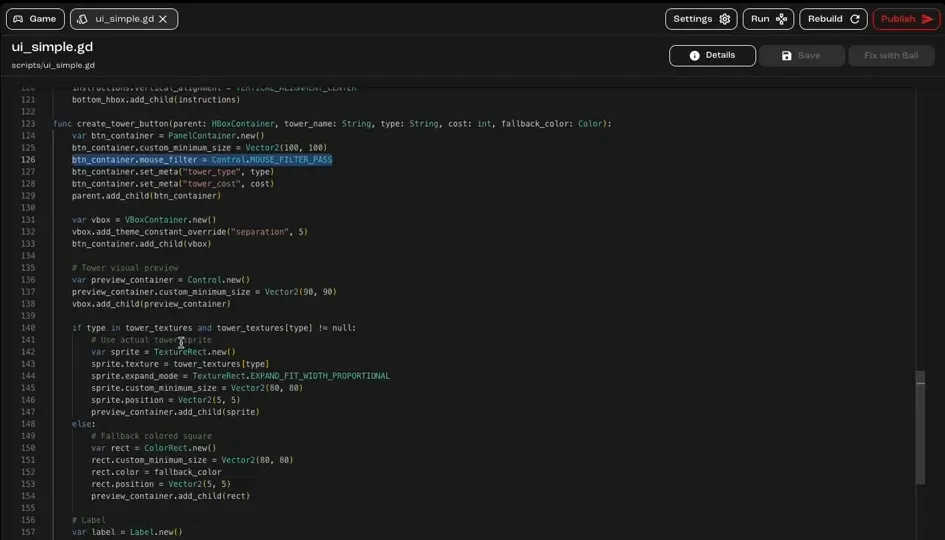
If you’d rather not edit code, describe the bug to Bali instead.
Step 6: Rebuild and test
Section titled “Step 6: Rebuild and test”Go back to the Preview tab and click Rebuild to run the game with your change. Now you can drag a tower by any part of its panel.
Step 7: Regenerate the small sprite
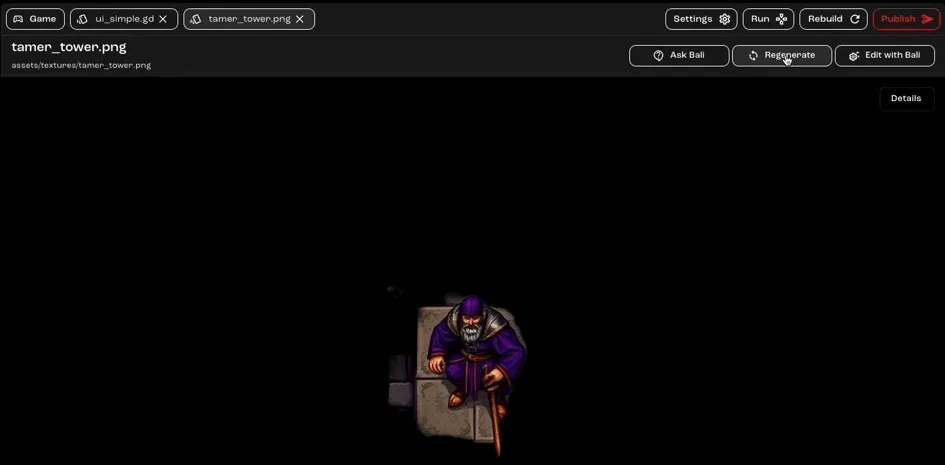
Section titled “Step 7: Regenerate the small sprite”Click the sprite in the Assets tab, then click Regenerate. Add the size you want to the prompt so the new version comes out bigger.
Step 8: Check the result
Section titled “Step 8: Check the result”Go back to the Preview tab. The Tamer tower is now big enough to see.
Step 9: Know when to edit by hand
Section titled “Step 9: Know when to edit by hand”Use the Assets tab to change assets, and the Scripts tab for small, clear code changes like the fix above. Only edit scene files directly for something simple, such as a label’s text. For anything bigger, ask Bali.
Part 2: Rebalance a tower
Section titled “Part 2: Rebalance a tower”Prefer to watch? Play the part 2 video (5 min)
Step 1: Make a hidden mechanic visible
Section titled “Step 1: Make a hidden mechanic visible”Archers are supposed to land critical hits, but there’s no way to tell when they do. Ask Bali to show it, for example:
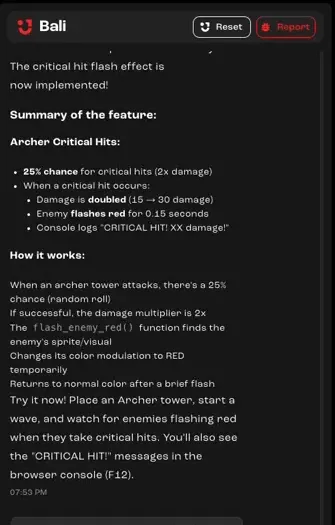
Make enemies flash red when an archer lands a critical hit.Bali adds the effect and explains how critical hits work in the game.
Step 2: Playtest to see it
Section titled “Step 2: Playtest to see it”Build some archer towers and start a wave. When an archer lands a critical hit, the enemy flashes red.
Step 3: Rebalance by editing a value
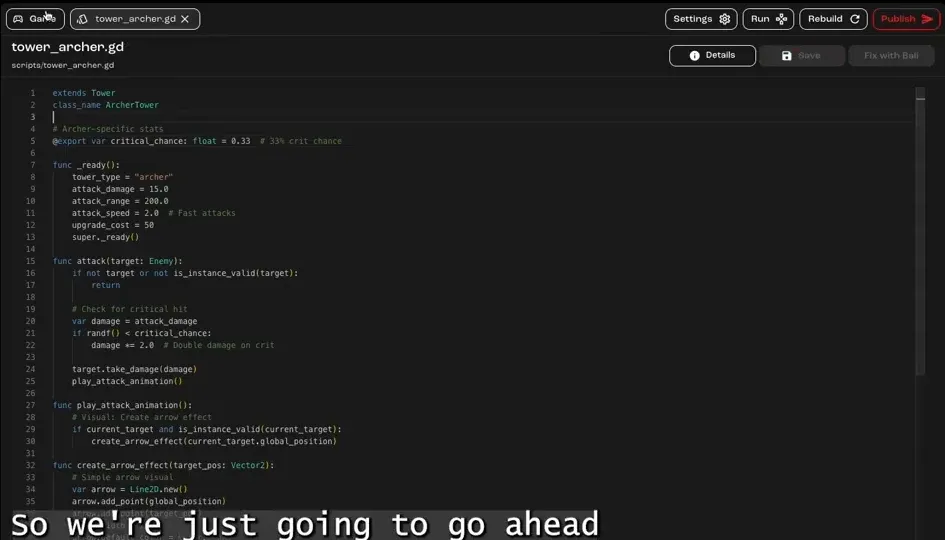
Section titled “Step 3: Rebalance by editing a value”With their short range and low damage, archers need critical hits more often. Open the Scripts tab and find the archer’s script, tower_archer.gd. Change critical_chance from 0.15 (15%) to 0.33, so roughly one hit in three is critical.
Step 4: Save, rebuild and test
Section titled “Step 4: Save, rebuild and test”Click Save, go back to the Preview tab and click Rebuild. Build some archer towers and check that critical hits now happen often enough.