

Using Bali, the AI Producer in Jabali Studio
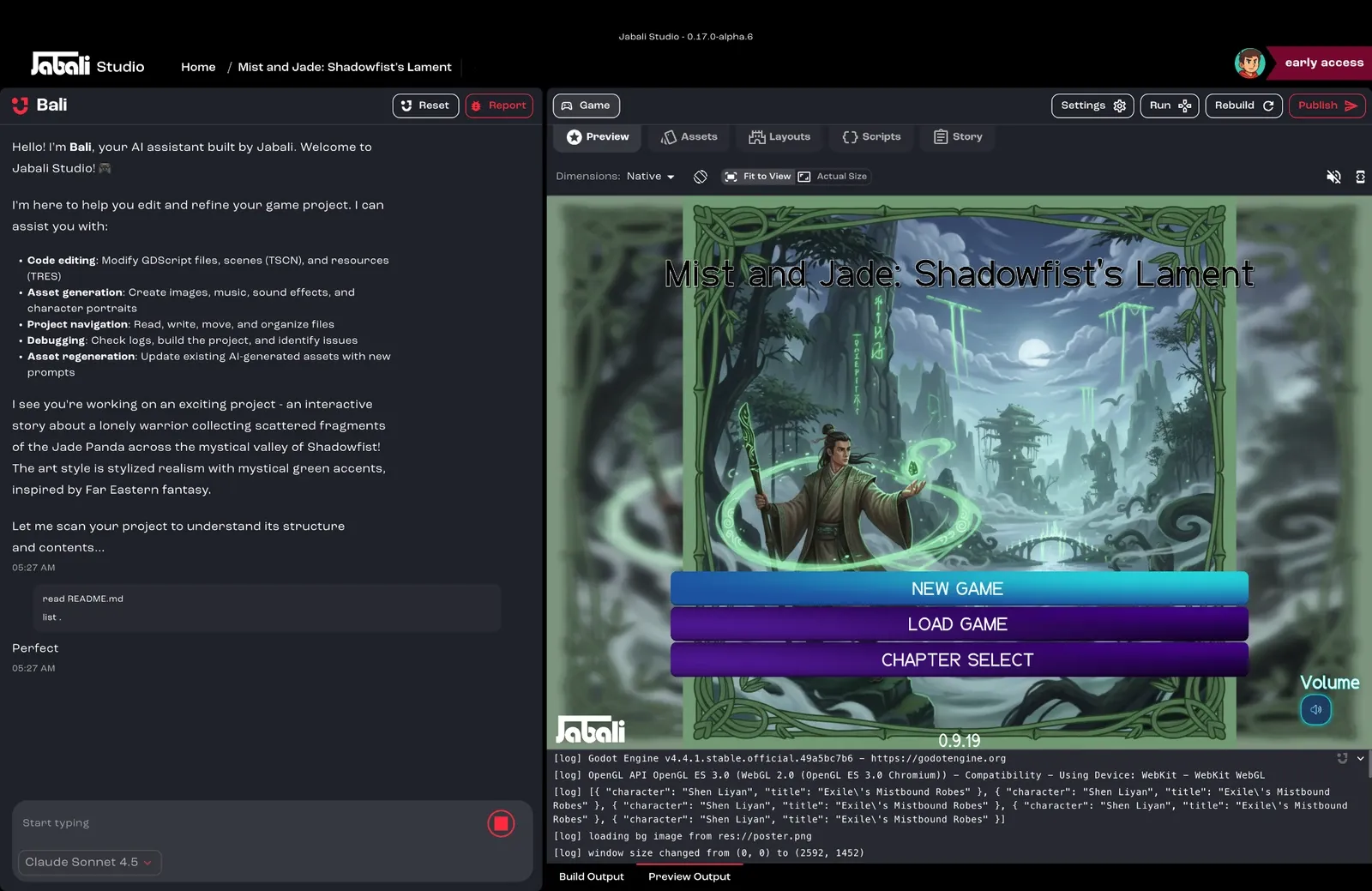
Bali is the AI assistant built into Jabali Studio. It helps you understand, edit and expand your game using natural language. Whether you’re tweaking gameplay, fixing logic, editing character bios or exploring what’s in your game, you do it all by chatting with Bali.
What can Bali do?
Section titled “What can Bali do?”You can use Bali to:
- Answer questions about your game’s characters, levels, logic or assets
- Edit content such as scene descriptions, story flow, dialogue and character traits
- Regenerate assets from updated prompts
- Debug scenes or test branching logic
- Explain code that controls game behavior, such as roguelike modifiers
- Suggest improvements to writing, pacing or structure
- Create assets: images, video, music, sound effects, speech, skyboxes and 3D characters. See Create assets.
- Use your references: design documents, images, screenshots and data files you attach. See Attachments.
- Run project commands such as installing packages or running tests, with your approval. See Shell tool.
- Use extra tools and know-how from MCP servers and Agent Skills
Watch: Bali traces a bug through the logs and fixes it (1:05, from the masterclass AI Game Jam Masterclass)
How to use Bali
Section titled “How to use Bali”- Launch Jabali Studio.
- Open a project.
- Find Bali’s chat panel on the left side of the Studio.
- Type your prompts and questions in the chat box.
Watch: How Studio plans a task and hands it to Bali’s agents (0:32, from the tutorial Build a Custom Phaser Game from Scratch with AI)
The chat box
Section titled “The chat box”- Click + to Attach files, Add MCP server, Add agent skill or Take screenshot of the game preview. You can also drag files straight onto the panel.
- Click the model chip next to + to change the Model, Behavior and Reasoning Bali uses for this project. See Models and behavior.
- After each reply, Bali suggests next steps as buttons under the chat. Click one to send it.
- At the top of the panel, Reset Thread clears the conversation and starts fresh, and Report sends a bug report to the Jabali team.
Approving Bali’s actions
Section titled “Approving Bali’s actions”For actions that reach outside your project files, Bali asks first. An approval card appears in the chat:
- Shell Approval Required when Bali wants to run a command. See Shell tool.
- MCP Tool Approval Required when Bali wants to use a tool from an MCP server. See MCP servers.
Asset generation works the same way: Bali prepares a request card, and nothing is generated until you click Generate.
Watch: Review and accept code changes (0:21, from the tutorial Build a Custom Phaser Game from Scratch with AI)
Example prompts
Section titled “Example prompts”| Goal | What to ask |
|---|---|
| Understand game state | “What are the main story branches in this game?” |
| Modify content | “Change the scene where the player meets the ghost to make it funnier.” |
| Improve dialogue | “Rewrite this dialogue to sound more sarcastic.” |
| Describe assets | “What visual assets are used in Level 3?” |
| Regenerate a scene | “Regenerate the dream sequence scene in a noir style.” |
| Debug | “Why does Scene 2 not link to the ending?” |
| Code help | “What does this modifier script do in the combat scene?” |
Watch: A vague request next to a design-based prompt (2:14, from the masterclass Designing Game Systems That Feel Good)
Get better results
Section titled “Get better results”Bali does its best work with clear, focused requests. Write prompts Bali can act on shows how to plan, size and word them, and Debug with Bali covers bug reports and getting unstuck.
When a request is interrupted
Section titled “When a request is interrupted”Bali recovers from short interruptions on its own. If the AI model is busy or the connection drops before Bali starts replying, Bali retries automatically and shows a Retrying status with a countdown while it waits.
If Bali still can’t get a reply, or a reply stalls partway, the chat shows an error with a Retry button. Click Retry to send the request again. Once Bali has started replying, it doesn’t resend the request on its own.
If the chat stopped because you ran out of Sparks, see When you reach your limit.
Limitations
Section titled “Limitations”- Bali works best on one project at a time.
- Bali can’t access unpublished Jabali Web-only drafts. Load them in Studio first.
- Regenerating assets can take longer than text edits.
- Some AI models can’t see images. Studio warns you if the selected model can’t read an image you’ve attached.
- In very long conversations, Bali may run out of room for context. If that happens, click Reset thread and summarize where you are.
Use cases
Section titled “Use cases”- Polish your narrative with fewer clicks
- Rapidly iterate on character backstories
- Use AI as your writing collaborator, code reviewer or test assistant
- Make bulk edits to scenes and branches in plain language
Let Bali handle the heavy lifting while you focus on creativity. Fire it up, ask away and watch your game evolve in real time.