

Jabali Studio interface overview
Jabali Studio uses a split-pane interface built for powerful game creation with minimal complexity. Whether you’re refining assets, editing gameplay logic or collaborating with Bali, the layout keeps your creative flow uninterrupted.
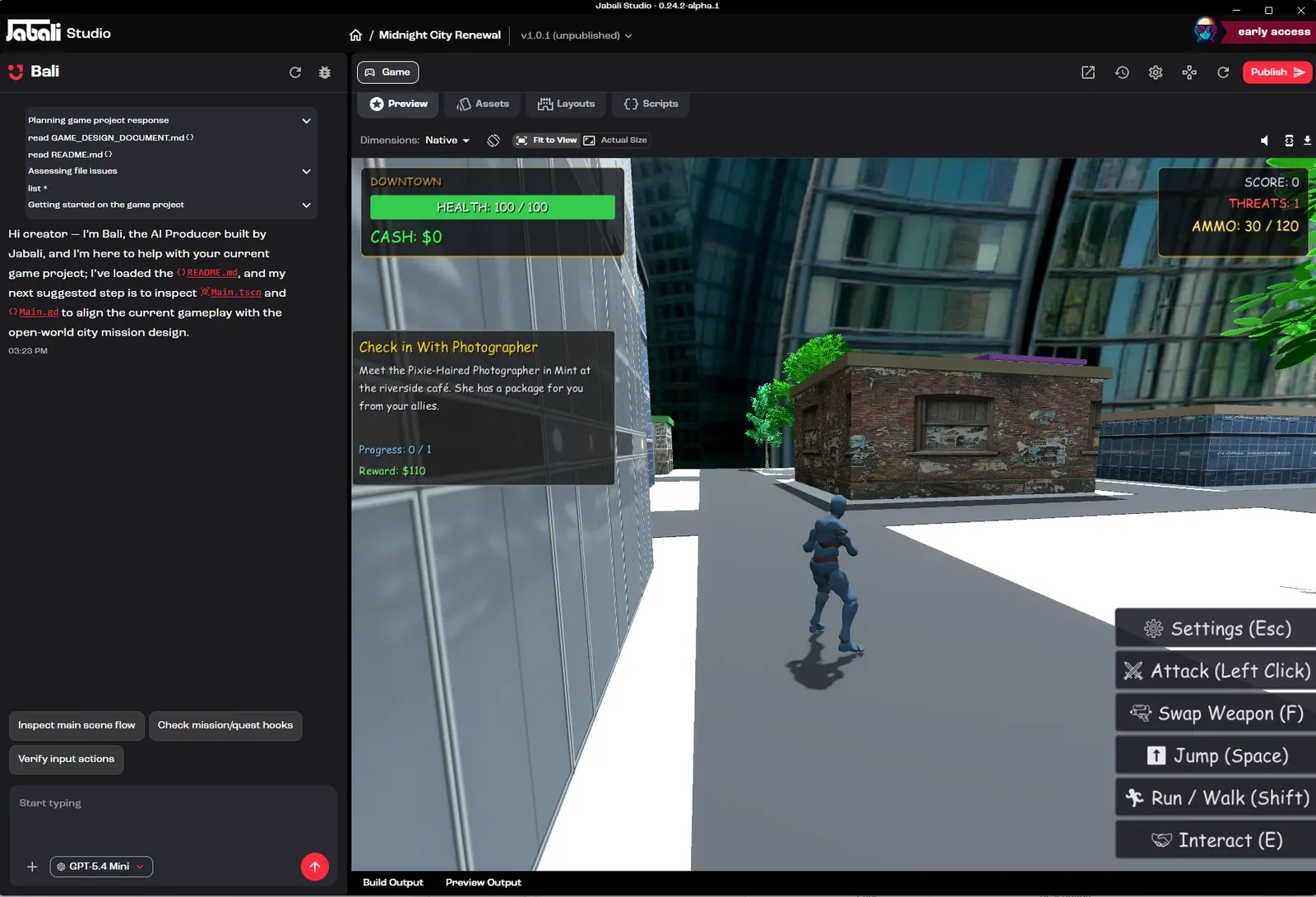
Interface structure
Section titled “Interface structure”The Studio interface has two main panes:
| Pane | What it’s for |
|---|---|
| Left pane: Bali (AI Producer) | Your AI agent for prompts, questions, edits and creative suggestions |
| Right pane: Game Studio | The main editing area where you view, modify and manage your project |
Watch: Tour of Bali’s chat, the live preview and logs (1:28, from the masterclass How to Build a Game on the Jabali Studio)
Bali’s panel (left pane)
Section titled “Bali’s panel (left pane)”Bali lets you work on your game in natural language. In this panel you can:
- Ask questions about assets, levels or logic
- Preview and edit artwork, scenes and scripts
- Generate or regenerate characters, dialogue, layouts and other assets
- Make direct edits using suggestions or follow-up commands
After each reply, Bali offers suggested next steps as buttons under the chat. Click one to send it.
The controls around the chat box:
| Control | What it does |
|---|---|
| + | Attach files, Add MCP server, Add agent skill or Take screenshot of the preview |
| Model chip (next to +) | Change the Model, Behavior and Reasoning for this project |
| Reset Thread (top of panel) | Clear the chat history and start a fresh conversation. Your project isn’t affected. |
| Report (bug icon) | Send a bug report or feedback to the Jabali team |
Learn more in Using Bali, Attachments and Models and behavior.
Game editing view (right pane)
Section titled “Game editing view (right pane)”This is your central workspace. Tabs run across the top:
| Tab | Available in |
|---|---|
| Preview | All projects |
| Assets | All projects |
| Layouts | Godot projects |
| Scripts | All projects |
| Story | Story-based games |
Watch: Tour of the Preview, Assets, Layouts and Scripts tabs (2:17, from the masterclass Mastering Prompt Engineering for Game Creation)
Preview
Section titled “Preview”See a live preview of your game as it currently exists, including updated visuals, scripts and interactions. Above the preview you can change the screen size, mute the sound and open the logs. For Godot projects, a banner tells you when the build is out of date.
Playtest your game covers every control.
Assets
Section titled “Assets”Browse and manage all game assets, including character sprites, backgrounds, sound files, video, fonts, 3D models and UI elements.
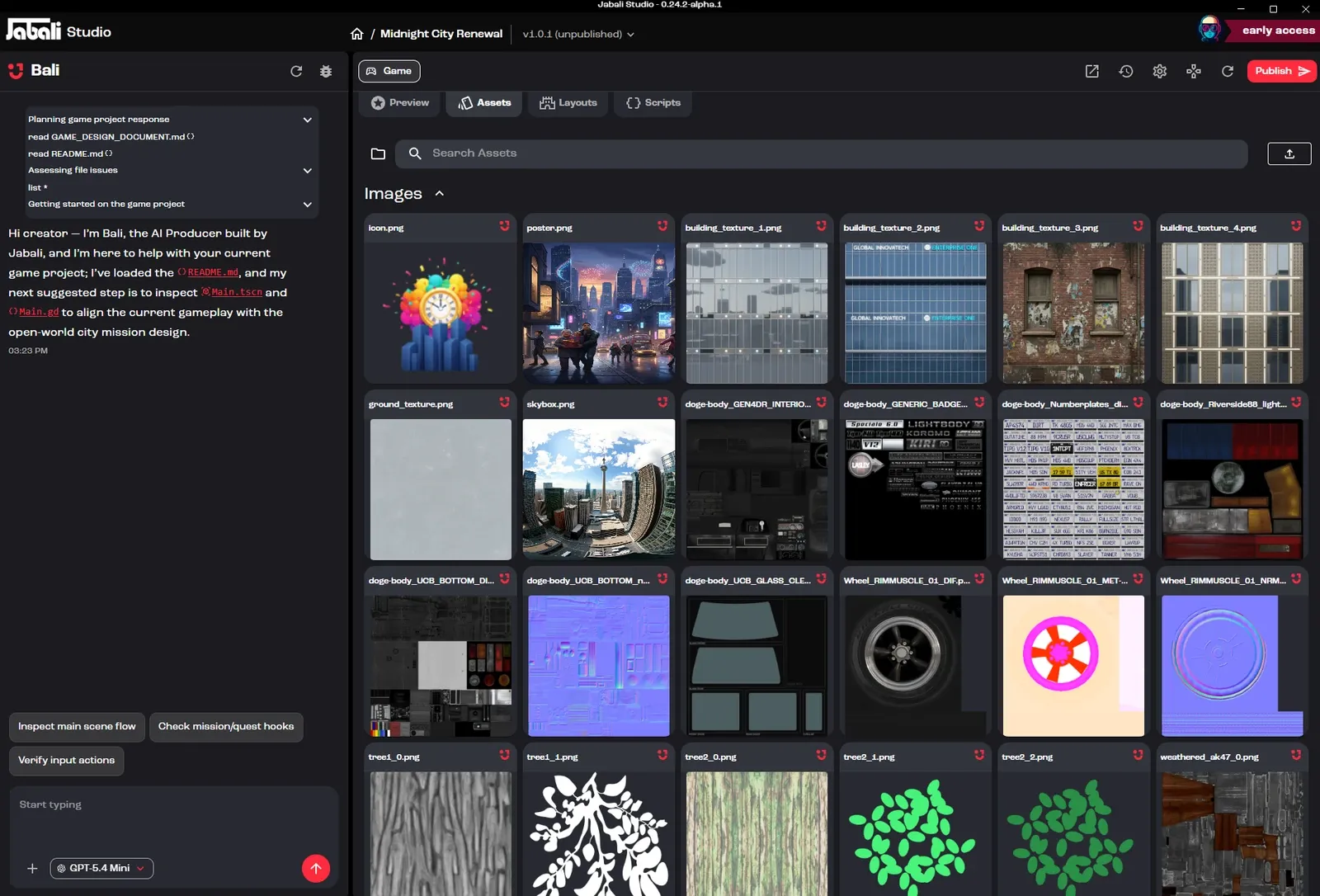
From this tab you can:
- Search your assets and browse them by folder
- Upload new assets with Upload Asset, or by dragging files onto the tab
- Regenerate visuals with AI, or click an asset and choose Edit with Bali
- Replace or delete files
- Review where an asset came from and the prompt used to create it
See Create assets for everything Bali can generate.
Watch: Asset details, history and Ask Bali (1:01, from the masterclass How to Build a Game on the Jabali Studio)
Layouts
Section titled “Layouts”Godot projects only. View and edit all of the game’s layout files, structured as Godot .tscn scenes. Each layout corresponds to a scene in the game’s story or level structure.
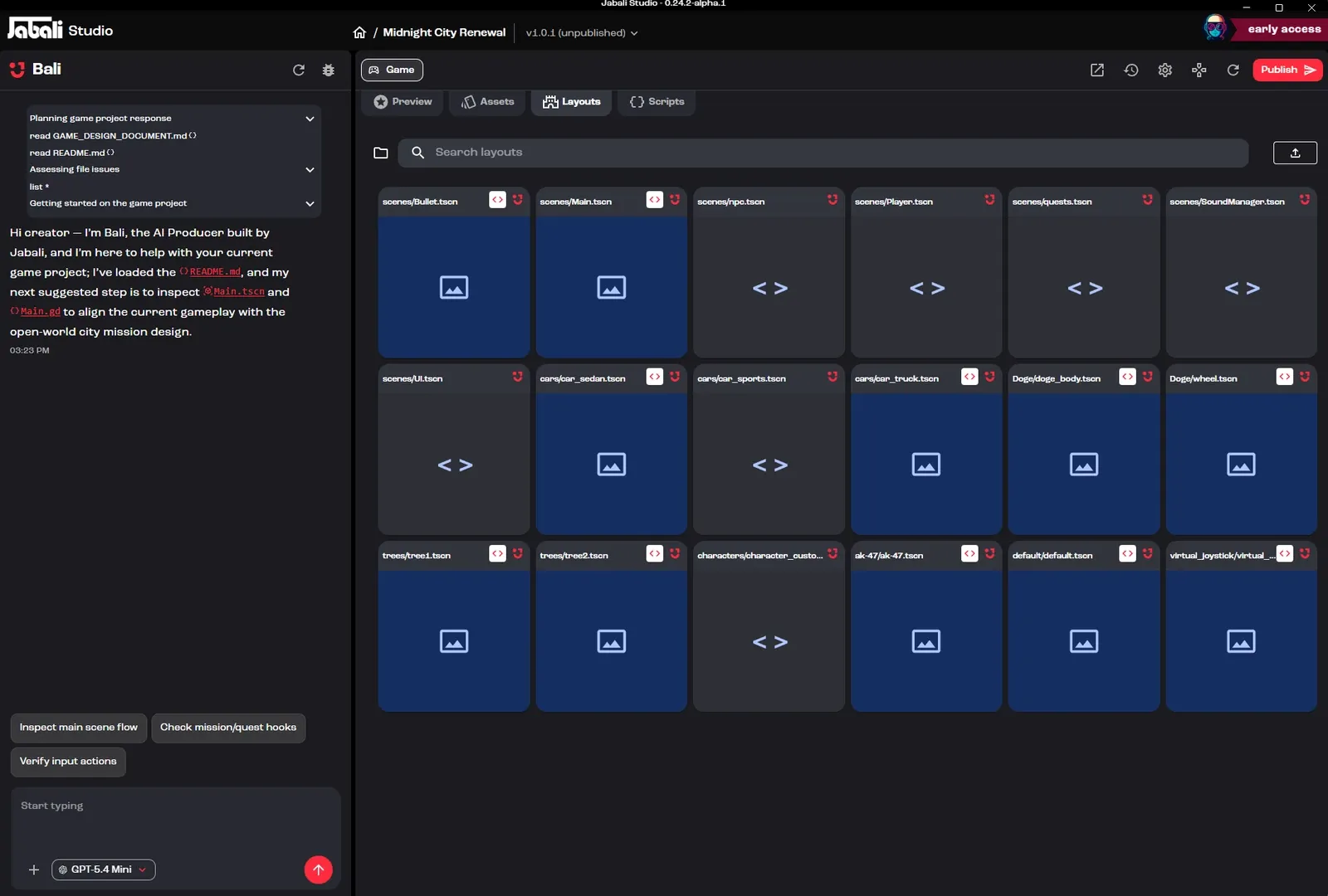
Use this tab for:
- Arranging level geometry
- Positioning characters and objects
- Editing node trees and interaction zones
Scripts
Section titled “Scripts”Explore and modify the game’s logic: GDScript in Godot projects, and JavaScript or TypeScript in web projects.
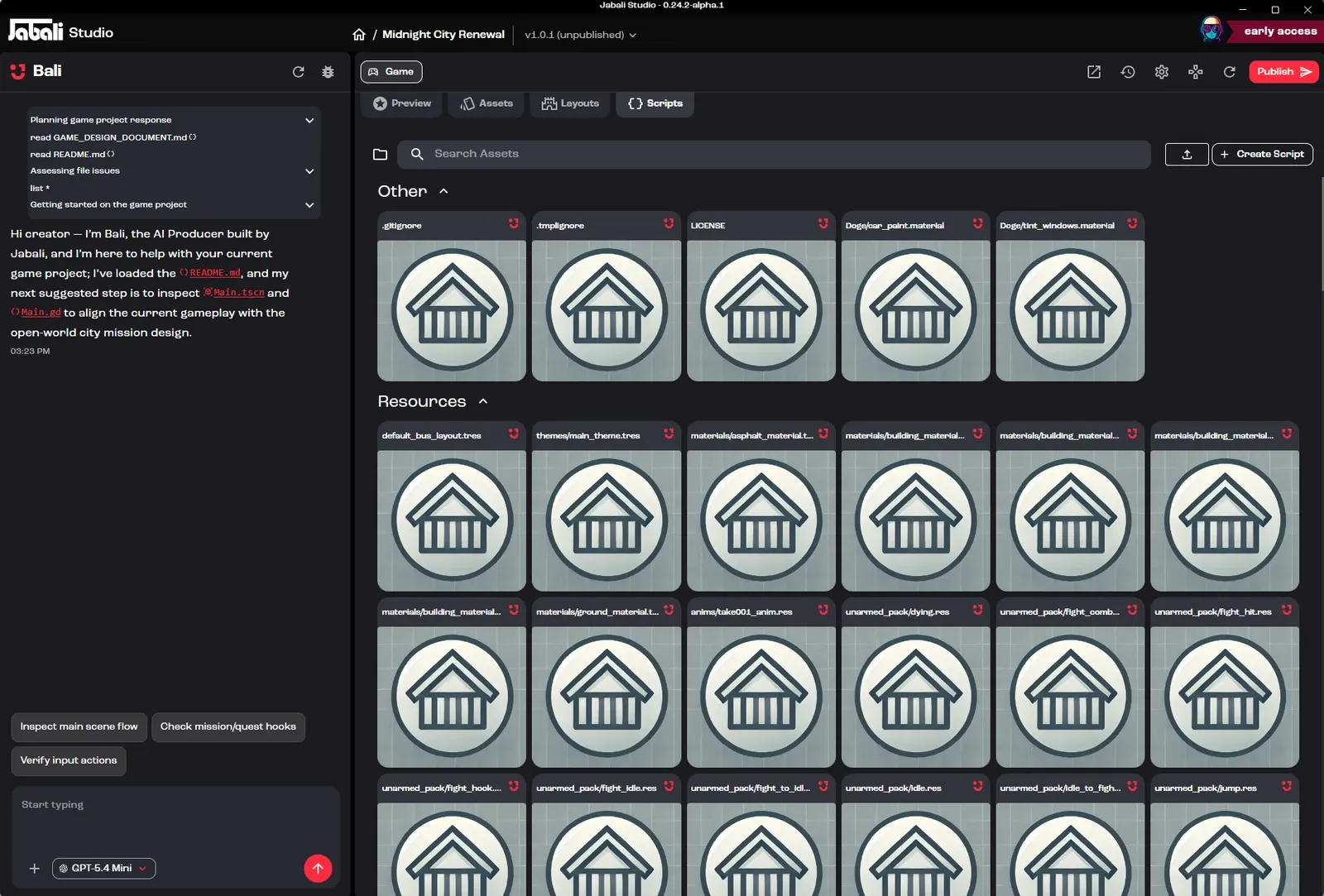
You can:
- Edit game logic for interactions, NPC behavior, scoring, triggers and more
- Upload script files with Upload Scripts
- Debug issues with Bali or in the log view
- Save and test changes in real time
Watch: Edit a value by hand, then rebuild (1:26, from the tutorial Enhancing Archer Towers: Critical Hits, Visual FX & Balance Tweaks)
Appears for story-based games, such as interactive stories. It shows your story’s chapters as a flow of connected cards. Use the zoom controls to move around, and double-click a chapter to open it and edit its dialogue.
Watch: Story mode: chapters, lines, choices and jumps (0:53, from the masterclass How to Build a Game on the Jabali Studio)
Toolbar
Section titled “Toolbar”The toolbar in the top-right corner has these controls:
| Control | What it does |
|---|---|
| View version history | See every change and restore an earlier version. See Version history. |
| Open Project Settings | Game details, plugins and AI settings for this project. See Settings. |
| Run in new window | Playtest your game in a separate window. See Playtest your game. |
| Rebuild the project | Rebuild and reload the preview with your latest changes |
| Publish | Open the publish dialog. See Publish your game. |
Next to the game’s title, the version label (for example, v1.0.1 (unpublished)) shows the version you’re working on. Click it to open version history, or click the title to rename the game.
Next step
Section titled “Next step”Learn how to get the most out of Bali.