

Tutorial: Publish your game
When you’ve playtested your game and you’re happy with the mechanics, logic and assets, publish it so anyone with the link can play it.
Cave arcade game, part 3 of 6. Each part builds on the one before. See all tutorials.
Prefer to watch? Play the full video (2 min)
Step 1: Click Publish
Section titled “Step 1: Click Publish”Click Publish in the top-right corner of Studio.

Step 2: Review the details
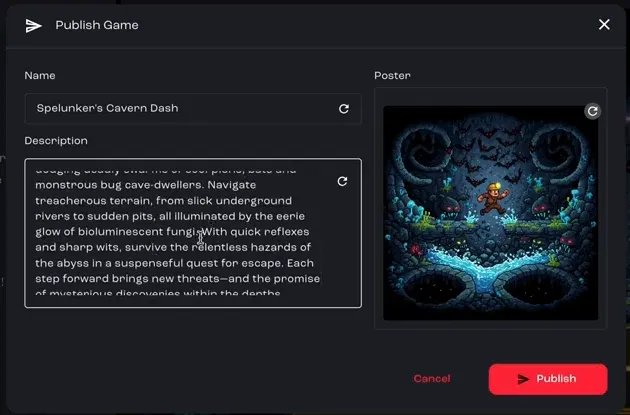
Section titled “Step 2: Review the details”The Publish Game dialog shows a summary of what players will see: the game’s name, a short description and the poster that represents your game. Bali fills these in for you. Edit anything you want to change, then click Publish.
Step 3: Wait while Studio builds your game
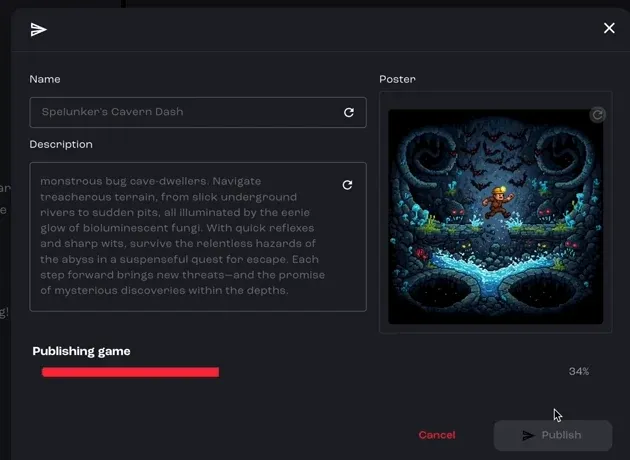
Section titled “Step 3: Wait while Studio builds your game”A progress bar shows how far along publishing is. Studio builds the game and gives you a shareable link to the playable version, ready to send to friends, family or your community.
Step 4: Play it the way your players will
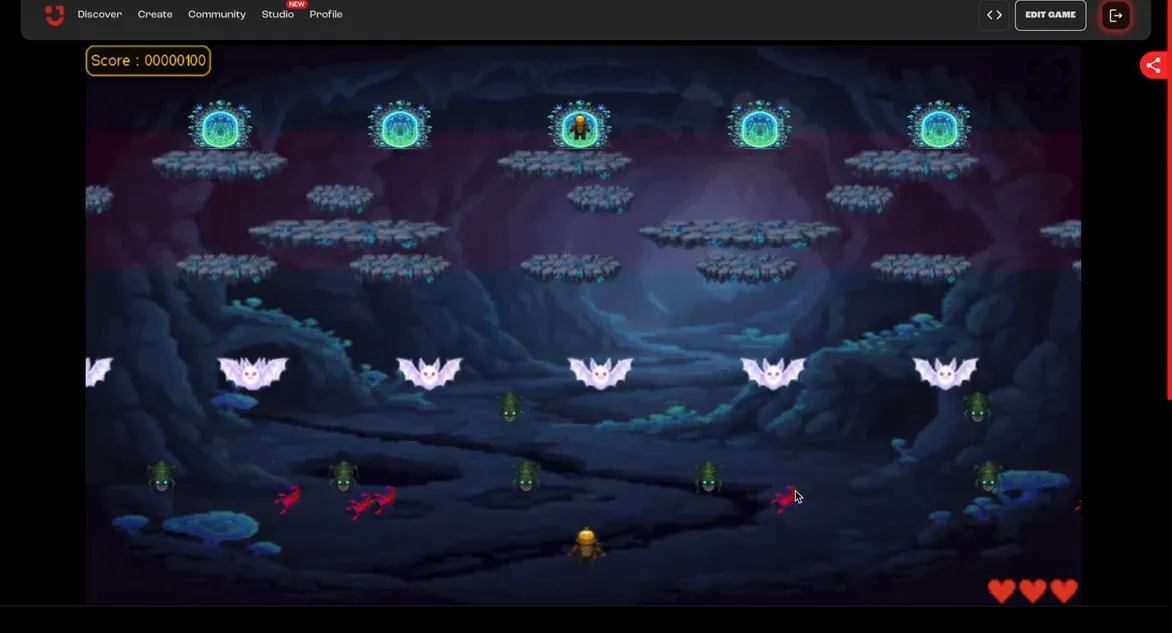
Section titled “Step 4: Play it the way your players will”Open the link to play the game in your browser, exactly as your players will.
That’s it: you’ve gone from an idea to a published, playable game. To change it later, edit it in Studio and publish again.